
Modern PC games are built on the assumption that the operating system beneath them is fully licensed, updated, and stable. Game engines, graphics drivers, and online services expect Windows 11 to behave in a predictable way. When the system is not activated, that expectation starts to crack, even if the game still launches.

Many gamers tolerate the activation watermark at first, thinking it is only a visual annoyance. Some even look for quick fixes, often starting with a Reddit post shared in forums or advice threads. What often gets missed is how activation quietly affects deeper gaming features that modern titles rely on every day.

DirectX updates and modern graphics features
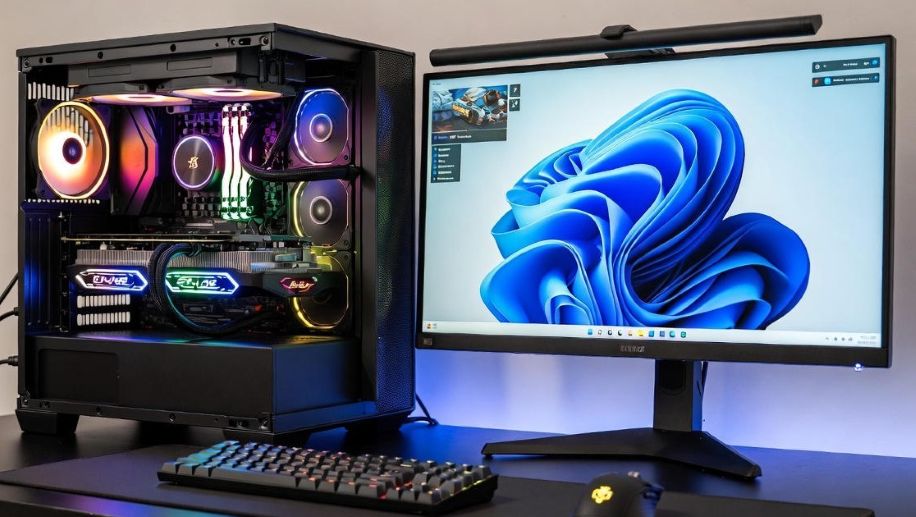
gaming PC setup with Windows 11 interface

DirectX sits at the heart of PC gaming on Windows. Features like DirectX 12 Ultimate, ray tracing, and variable rate shading depend on regular system updates. Activated copies of Windows 11 receive these updates smoothly, keeping the graphics stack aligned with what developers target.

On unactivated systems, update behavior can be inconsistent. Critical components may lag behind, which can lead to missing features or reduced performance in newer games. For players investing in powerful GPUs, this gap becomes more noticeable over time.

Game Mode and performance tuning

Windows 11 Game Mode is designed to prioritize games by reducing background tasks and improving resource allocation. It works best when the operating system is fully recognized as genuine and supported. Activation ensures Game Mode receives improvements and bug fixes that come with system updates.

Without proper activation, Game Mode may still appear enabled, but its effectiveness can be reduced. Serious gamers chasing stable frame rates and smooth gameplay rarely want to leave performance to chance.

Driver compatibility and hardware support

Graphics drivers from NVIDIA, AMD, and Intel are tested against fully activated versions of Windows. The same applies to chipset drivers, audio software, and controller support. When Windows 11 is activated, driver installation and updates tend to work as intended.

Unactivated systems can trigger odd issues, from drivers failing to install cleanly to control panels behaving unpredictably. Some players report spending hours troubleshooting problems that trace back to an unlicensed operating system. Advice from another Reddit post often appears during these searches, but it usually points back to the same conclusion.

System stability during long gaming sessions

Modern games push PCs hard. Long sessions stress memory, storage, and system services. Windows 11 activation helps ensure that background processes, updates, and security components run in a stable and predictable way.

When activation is missing, certain system reminders and restrictions can interrupt workflows. While Windows does not block games outright, small interruptions add up. Crashes, freezes, or odd behavior during a ranked match or raid can ruin the experience.

Online gaming, anti-cheat, and trust

Many competitive games rely on anti-cheat systems that monitor the operating environment. These tools are designed around standard, licensed versions of Windows. An unactivated system can raise flags or create compatibility issues, even if the player has no bad intent.

Activation helps ensure the system environment matches what developers and publishers expect. For online gamers, this reduces the risk of false positives, login issues, or unexpected disconnects.

Why serious gamers avoid unactivated Windows

PC gaming is no longer just about launching a game. It involves updates, cloud saves, mods, overlays, and live services. All of these layers interact closely with the operating system. Activated Windows 11 provides a stable foundation for that stack.

Many gamers eventually realize that saving time and avoiding stress matters more than ignoring a watermark. Smooth updates, reliable drivers, and consistent performance are part of the full gaming experience.

READ ALSO: Maximize Your Gaming Experience with a Genuine Windows 11 Pro Key through Reddit

The bigger picture for modern PC games

Game developers build for the future. They assume players are running supported systems with up-to-date features. Windows 11 activation aligns a PC with that future, ensuring compatibility with upcoming titles and new technologies.

For anyone serious about PC gaming, proper activation is less about appearance and more about performance and trust. The watermark fades into the background, but system stability stays front and center. In the end, even advice from a Reddit post often leads gamers to the same realization: a fully activated Windows 11 setup helps games run the way they were meant to.
Windows 11 brings a fresh look, new features, and improved performance to your computer. However, to enjoy everything Windows 11 has to offer, your PC needs to meet certain system requirements. In this article, we’ll take a detailed look at these requirements, explain why they matter, and show you how to check if your PC is compatible with Windows 11.

System requirements are essential because they ensure that your computer can handle the demands of the new operating system. These requirements cover aspects like processing power, memory, and security features. Meeting these requirements guarantees that Windows 11 key runs smoothly and securely on your device, offering the best possible user experience.

Minimum System Requirements for Windows 11

Here’s a breakdown of the minimum system requirements your PC needs to meet to run Windows 11:

  1. Processor:
    • A compatible 64-bit processor with at least 1 GHz clock speed and 2 or more cores.
    • Windows 11 requires a modern processor from Intel, AMD, or Qualcomm. Specific compatible models include Intel 8th Gen or later, AMD Ryzen 2000 series or later, and Qualcomm Snapdragon 7c or later.
  2. Storage:
    • At least 64 GB of available storage is required for Windows 11 installation.
    • Additional storage is necessary for updates and the installation of apps. Solid-state drives (SSDs) are recommended for faster data access and boot times.
  3. System Firmware:
    • UEFI firmware with Secure Boot capability.
    • Secure Boot helps protect your system from malware and ensures that only trusted software loads during startup.
  4. TPM (Trusted Platform Module) Version 2.0:
    • TPM 2.0 is a security feature that helps with encryption and secure hardware authentication.
    • Most modern PCs have TPM 2.0 either as a dedicated chip on the motherboard or integrated into the processor.
  5. Graphics Card:
    • This requirement ensures your PC can handle the graphical enhancements and modern interface of Windows 11.
  6. Display:
    • This ensures that your screen can display Windows 11’s new visuals and user interface clearly.
  7. Internet Connection:
    • This connection also allows for accessing online features and syncing your settings across devices.

How to Check if Your PC is Compatible with Windows 11

Microsoft provides several tools and methods to help you check if your PC meets the requirements for Windows 11:

  1. PC Health Check Tool:
    • Microsoft’s PC Health Check Tool is a straightforward way to determine if your PC can run Windows 11.
    • Download and install the tool from the Microsoft website.
    • Open the tool and click “Check now. It will scan your system and provide a compatibility report.
    • If your PC doesn’t meet the requirements, the tool will highlight which components are incompatible.
  2. Checking Manually:
    • Processor: Go to “Settings” > “System” > “About” to see your processor model and speed. Cross-reference this with the list of compatible processors on the Microsoft website.
    • Memory: In the same “About” section, you can see how much RAM your system has.
    • Storage: Open File Explorer and click on “This PC” to check available storage.
    • TPM and Secure Boot: Press Windows + R to open the Run dialog, type tpm.msc, and press Enter to check if TPM 2.0 is enabled. For Secure Boot, restart your PC and enter the BIOS/UEFI settings (usually by pressing a key like F2 or Del during startup) to check its status.
    • Graphics: Open “Device Manager, expand the “Display adapters” section to see your graphics card details. You can also check the DirectX version by typing dxdiag in the Run dialog and pressing Enter.

What to Do if Your PC Isn’t Compatible

If your PC doesn’t meet the requirements for Windows 11, you have a few options:

  1. Upgrade Your Hardware:
    • Consider upgrading components like your RAM, storage, or even the processor if they don’t meet the minimum requirements. This can be a cost-effective way to make your PC compatible with Windows 11.
  2. Enable TPM and Secure Boot:
    • If your PC supports TPM 2.0 and Secure Boot but they’re not enabled, you can usually activate them in the BIOS/UEFI settings. Consult your PC’s manual or manufacturer’s website for detailed instructions.
  3. Stay on Windows 10:
    • If upgrading to Windows 11 isn’t feasible, you can continue using Windows 10 and enjoy its features and security updates.

By checking your PC’s specifications and making necessary adjustments, you can take full advantage of the new features and enhancements Windows 11 offers. Whether you’re ready to upgrade or need to make a few changes first, this guide provides the steps you need to prepare for Windows 11 and enjoy a modern, secure, and efficient operating system.

𐌢